Controls & UI
How the DanceXR interface is laid out, how you interact with the scene, and the default input mappings for keyboard, mouse, gamepad, and VR controllers.
For VR-specific operations (hand controllers, pointer calibration, comfort, Pointer Handle, Mouse-in-VR), see the VR operations page.
UI layout
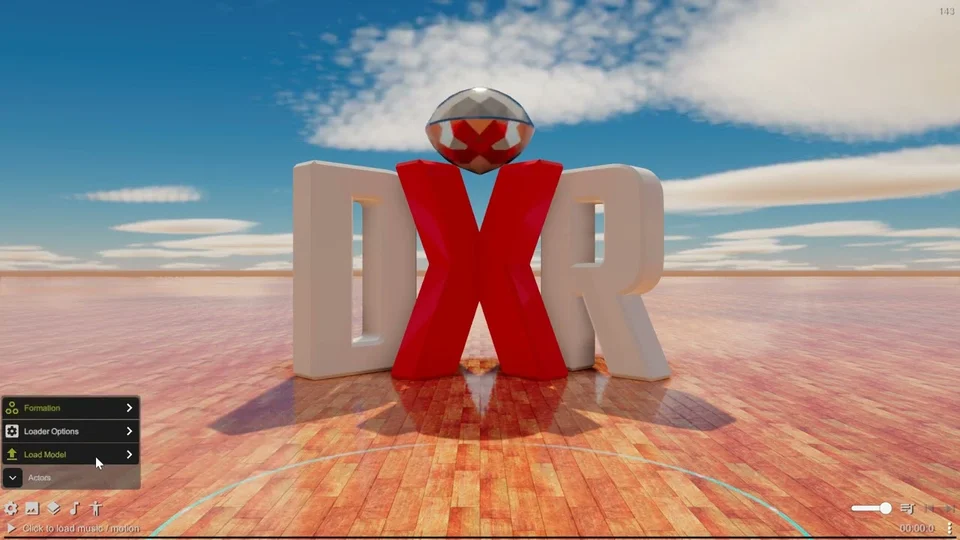
When DanceXR opens you should see the main UI panel at the bottom of the screen. If it is missing, click empty space to cycle UI states until it appears (see Toggle states below).
In desktop mode the UI panel is anchored to the bottom of the screen. In VR it floats in front of you and can be moved by holding the grip button and dragging it with your hand.
UI panel
Five icons on the left open the main menus:
| Icon | Menu | What it covers |
|---|---|---|
| Gear | System | General settings, content library tools, support links |
| Picture | Environment | Stage, skybox, lighting, camera |
| Stage | Scene | Stages, props, save/load scene |
| Music note | Audio / motion | Load and assign motions and audio |
| Person | Actor | Load and manage character models |
On the right are playback and chat controls: volume, playlist, previous / next, AI chat button.
Progress bar
The strip at the bottom shows the current motion or audio name and progress. Click to play or pause; drag to scrub through the timeline.
Long press to enter the fine scrubbing mode, which slows down the timeline for more precise control. In the fine scrubbing mode, move the cursor to the left or right half to control the direction, and the distance from the center controls the speed.
Toggle states
Click on empty space (anywhere not occupied by an interactable element) to cycle between three modes:
- UI mode — UI panel and controls are visible; selection discs are shown.
- Control mode — UI panel is hidden but the actor selection discs remain visible, so you can still drag and pose actors.
- Immersive mode — UI panel and discs are hidden for a clean view. Useful for screenshots, recording, or just watching.
You can also map a button to Toggle UI to switch state without clicking; see the input tables below.
Interacting with actors and stage objects
Loaded actors and stage objects have a yellow selection disc under their feet. The disc is visible in UI and Control modes.
The selection disc has a red arrow indicating the orientation of the actor. When your pointer lands inside the circle, you can click and drag to move the actor around the stage. When your pointer is outside the circle in the area of the arrow, you can drag to rotate the actor. This logic is the same in VR.
While dragging, you can also use the mouse wheel or thumbstick on the hand controller to rotate the actor.
- Click the disc to open the actor menu.
- Drag the disc to move the actor across the stage.
- Mouse wheel while dragging rotates the actor.
- Horizontal scroll wheel (if your mouse has one) moves the actor up and down.
- VR thumbstick left/right while dragging rotates; thumbstick up/down moves vertically.
Gizmo cubes
Some motions and tools support gizmo cubes — virtual cubes that appear on body parts so you can move and pose them. Depending on where the pointer lands, drag to move or rotate the gizmo.
Features that show gizmo cubes include:
- Wind field in sky settings: change wind field position and direction.
- Motion Override: adjust the position and rotation of body parts for the overridden motion.
Input scheme
DanceXR’s input mapping is built around a common abstract control set, so the same actions work across keyboard, gamepad, and VR controllers:
- Two thumbsticks
- A dpad (gamepad / keyboard only)
- Left and right trigger buttons
- Left and right shoulder buttons (gamepad) or grip buttons (VR)
- A, B, X, Y face buttons (gamepad) or button 1, 2 per hand (VR)
- Select / menu buttons
Every action can also be mapped to keyboard keys, so you can run DanceXR on a desktop with no controller. On PC and Android, mouse or touch panning and dragging is also available. In VR, laser pointers handle menu interaction and drag & drop.
VR mouse control (v2025.10)
You can use a mouse to drive the pointer in VR mode. Combined with keyboard input this is well suited to a seated desk experience.
Pointer Handle (v2025.10)
A long flexible rod driven by physics that you can hold in your hand to interact with actors in VR. NSFW; not available in the Pure version. Supports loading any external model with a chain of bones as the handle.
Second action
By default, the grip button on VR controllers and the shoulder buttons on gamepads are assigned to Second Action. Holding Second Action while pressing another control triggers that control’s secondary action instead of its primary one.
You can re-bind Second Action to a different button in input settings if you prefer.
Default mappings
Button controls
| Gamepad | VR | Key | Primary action | Second action |
|---|---|---|---|---|
| Btn X | Left Btn 1 | Number 1 | Center actor | Reset physics |
| Btn Y | Left Btn 2 | Number 2 | Next model | Shuffle model |
| Btn A | Right Btn 1 | Number 3 | Next motion | Previous motion |
| Btn B | Right Btn 2 | Number 4 | Play / pause | Slow motion |
| LB | Left Grip | Left Shift | Second action | None |
| RB | Right Grip | Right Shift | Second action | None |
| Left Thumb Click | Left Thumb Click | None | None | |
| Right Thumb Click | Right Thumb Click | None | None | |
| Select | Left Menu | Esc | Toggle UI | UI back |
| Start | Right Menu | Enter | Toggle microphone | Toggle microphone |
Axis controls
| Gamepad | VR | Key | Primary action | Second action |
|---|---|---|---|---|
| Left Thumb X | Left Thumb X | A / D | Move X | Rotate |
| Left Thumb Y | Left Thumb Y | W / S | Move Y | Up / Down |
| Right Thumb X | Right Thumb X | Left / Right | Rotate | Move X |
| Right Thumb Y | Right Thumb Y | Up / Down | Up / Down | Move Y |
| Left Trigger | Left Trigger | Tab | Custom 1 | UI toggle |
| Right Trigger | Right Trigger | Space | Custom 2 | UI toggle |
| DPad X | N/A | L / J | UI X | UI X |
| DPad Y | N/A | I / K | UI Y | Scroll |
Customizing controls
You can re-map any of the default actions in input settings. Open the system menu (gear icon), then go to the input settings section. Each abstract action lists its current mapping; select an action and press the new button or key to bind it.
The microphone toggle for AI chat (default: right hand controller menu button) is configured here as well — see AI Voice Chat.
Further reading
- VR operations — VR-specific interaction (hand controllers, pointer, grip-drag UI, comfort)
- VR settings — VR technical settings (foveated rendering, pointer calibration, hand rendering)
- Concepts & glossary — definitions of selection disc, gizmo cube, toggle states
- Getting started — first-run walkthrough