VR Operations
How to use DanceXR in VR — controllers, pointers, grip-drag UI, comfort, and the operations that differ from desktop. For technical VR settings (foveated rendering, pointer calibration values, hand rendering toggles), see VR settings. For the input mapping tables and abstract control scheme, see Controls & UI.
Hand controllers
Each hand maps to:
- Trigger — analog input, used for “Custom” actions and as a UI toggle when held with second action
- Grip — by default assigned to Second Action. Hold to access the secondary action of any other control. Also used for UI grab (see Grip-drag UI below).
- Button 1 / Button 2 — face buttons (e.g. A / B / X / Y on Quest controllers)
- Thumbstick — moves and rotates actors when dragging; also used for UI scrolling
- Menu button — left-hand menu = Toggle UI / UI back; right-hand menu = Toggle microphone
The defaults are listed in Controls & UI.
Hand rendering
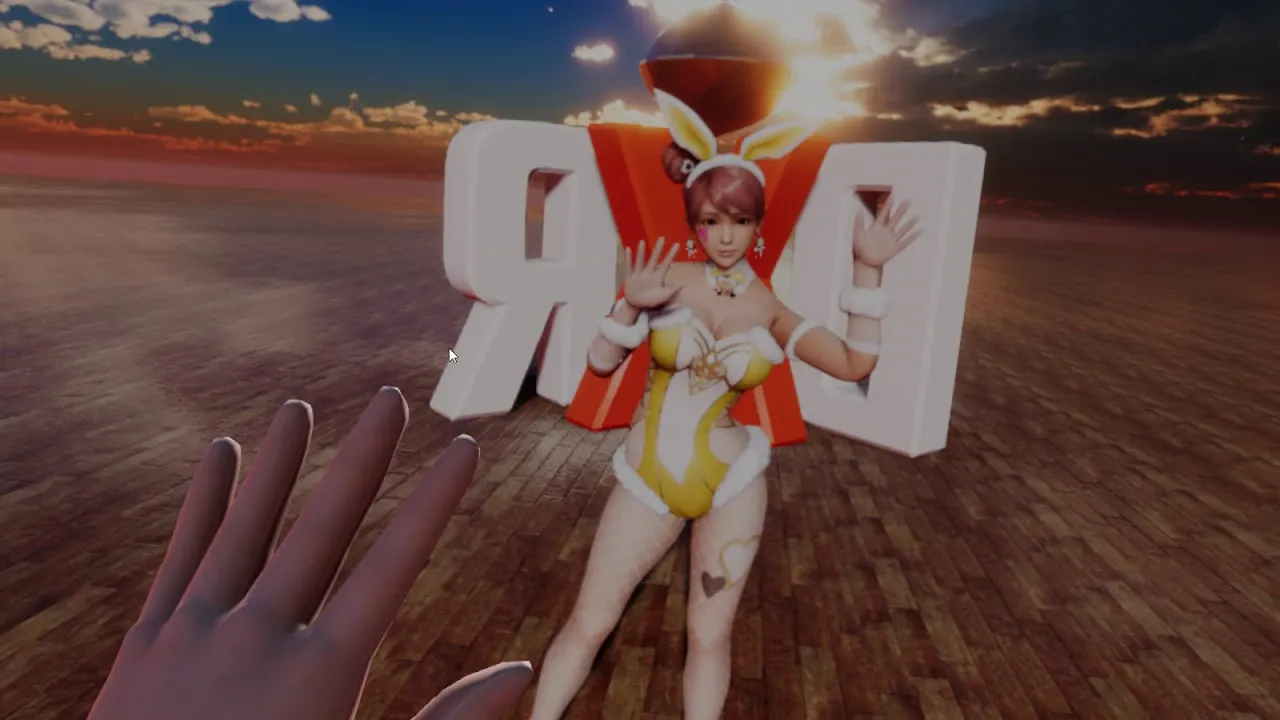
Virtual hands can be shown or hidden in VR. Toggled in VR settings → Hand. Settings include enable, cast shadow, and pose preset for each hand.
Pointer (laser ray)
Each controller projects a laser pointer used to operate the menu and to drag interactable objects (actor selection discs, gizmo cubes, props).
- Point at a UI element to highlight it; press the trigger or button 1 to select.
- Point at an actor’s selection disc and squeeze trigger/button to drag.
- Point at a gizmo cube to grab and pose a body part.
If the pointer ray feels off-axis, calibrate it in VR settings → Pointer. You can adjust direction, orientation, and offset.
Mouse-in-VR mode
Added in v2025.10. Lets you drive the pointer with a mouse instead of (or in addition to) hand controllers. Useful for seated desk play. Combined with keyboard input, this gives a desktop-like control scheme inside the headset. Enabled in VR settings → UI → Mouse Mode in VR.
Pointer Handle
Added in v2025.10. A physical rod model held in the hand, driven by physics, that you can use to push and prod actors. NSFW; not available in the Pure build. You can also load any external model with a chain of bones to use as a custom handle.
Grip-drag UI
The menu panel floats in front of you in VR. To move it:
- Hold the grip button while pointing your hand at the panel.
- Drag the panel to a new position.
- Release the grip button to leave it there.
If the panel drifts out of sight, UI Auto Return (in VR settings → UI) smoothly brings it back into your field of view.
You can also adjust the resting distance of the panel from your head with the UI Distance slider (0.5–5 m).
Toggle states in VR
The same three UI toggle states from desktop apply in VR — see Controls & UI → Toggle states. Cycle by clicking empty space, or by pressing the assigned Toggle UI input (Left Menu button by default).
In Immersive mode, the panel and selection discs vanish, leaving only the scene — useful for pure passive viewing.
Comfort and viewing
- Block Desktop Window (VR settings → UI) — stops mirroring the headset view to the desktop monitor, for better privacy.
- Foveated rendering (VR settings → Foveated rendering) — currently only works on the Quest version. Reduces peripheral resolution to free GPU time. Higher level = more performance, more visible blur at the edges.
Performance on Quest
Quest standalone is more resource-constrained than PC VR. Some features behave differently on Quest:
- Actor load/unload transitions are force-disabled on Quest builds, regardless of Actor options → Transition settings, to keep the runtime cost low.
- The content library lives at
/DanceXR/on storage (post-2024.3); see Content library on Android & Quest. - Speech-to-text in Automatic mode is not recommended on Quest because audio processing is too slow; prefer Manual mode. See AI Voice Chat → Speech to Text.
Microphone in VR
The microphone toggle for AI chat is mapped to the right-hand menu button by default. You can re-bind it in input settings; see AI Voice Chat → Key binding.
For best results in VR, choose the headset’s built-in microphone as the input device in your OS audio settings before launching DanceXR.
AR mode (mobile / Quest)
AR mode uses the device’s camera passthrough so actors appear to stand in your real environment. Available on supported mobile and Quest builds; Pro tier. See AR mode.
Related pages
- Controls & UI — input mappings and selection disc behavior
- VR settings — pointer calibration, foveated rendering, hand rendering
- AI Voice Chat — microphone setup
- Concepts & glossary — toggle states, gizmo cube, selection disc