Bone Mapper
Bone mapping tells DanceXR which bone in your model corresponds to which slot in its standard skeleton — head, spine, left shoulder, right index finger, and so on. With the mapping in place, motions can drive the model and the rest of DanceXR’s tools work correctly.
Bone mapping applies to:
- XPS / XNALara models — required, since XPS does not include standard bone naming.
- FBX models (preview, added in 2025.9) — required for the same reason; FBX bone names vary widely across sources.
- PMX models — usually unnecessary; PMX files include standard bone names already.
If you load a model and it stays stuck in T-pose / standard pose despite assigning a motion, missing bone mapping is the likely cause.
Mapping status
The header of the bone mapper shows how many bones are still missing. Hover the count to see the names of the missing bones in the status bar.
Each target bone has a status icon next to it:
- Empty circle — not mapped, but optional. The model still works without it.
- Circle with a dot — mapped.
- Circle with an exclamation mark (!) — not mapped and critical. The model will not function correctly until you map this one.
Most of the time DanceXR has already filled in the mapping automatically, and only a few bones with ! need attention.
Auto mapping
Auto mapping fills in the bone assignments by matching names from the source model against DanceXR’s standard skeleton. Improved in 2025.9 to handle a wider variety of FBX naming conventions, and works as a starting point you can then refine manually or with chain mapping.
Click Auto Map (or reload the model) to (re)run it.
Mapping options
Controls how the bone mapper translates poses from the source model’s rest pose into DanceXR’s expected pose. Leave them at default for most models. Adjust only if a model loads with twisted limbs or rotated joints after auto-mapping.
Visualization options
Toggle on-screen visualization of different bone categories so you can see what is mapped and what is not while you work. Useful when the model has a lot of helper or extra bones that obscure the main skeleton.
Manual mapping
For each target bone in DanceXR’s standard skeleton, pick the matching bone from the source model. Use this to fix any bones auto-mapping got wrong, or to map bones the algorithm could not find.
Manual mapping is the original mapping mode and is still available for any case chain mapping does not handle well. You can switch between manual and chain mapping freely without losing data.
As of 2026.6, bone and rig handling is more reliable, including support for translating non-standard bones and availability checks that help DanceXR work correctly with a wider range of models.
Chain mapping
Added in 2025.9. A faster way to do manual mapping that groups related bones into chains and exploits left/right symmetry.
Enable Chain Mapping in the bone mapper to switch into this mode. Switching does not erase your manual mapping — toggle off to return to it at any time.
Chains
Bones are grouped into chains that follow the parent-child hierarchy. Instead of expanding each level of the skeleton tree to find the head, you see a flat top-to-bottom list:
center → torso → torso2 → neck → head
Pick the corresponding source bone for each row, and the parent-child path is preserved automatically.
Symmetrical chains
Most character rigs have left/right pairs (left arm / right arm, left leg / right leg). Chain mapping merges symmetrical chains into one row each — map the left side and DanceXR mirrors the assignment to the right side. You only do the work once.
Mapping an entire chain at once
For a symmetrical chain such as the arm (shoulder → upper arm → forearm → hand → fingers), you can select the end bone (e.g. the index fingertip) on the source model and DanceXR fills in every intermediate bone automatically by walking the parent chain.
This is the fastest path for hands, where mapping a five-finger rig manually would otherwise mean dozens of selections per side.
When to fall back to manual mapping
Chain mapping covers the common case. Use manual mapping for:
- Models with non-standard parent-child relationships that break the chain assumption.
- Asymmetric rigs (one-armed characters, props that share the same skeleton).
- Bones that exist in DanceXR’s standard skeleton but the source model does not have an obvious counterpart for — pick the closest match yourself.
You can map most of a model with chain mode and use manual mode only for the few remaining bones.
Demos
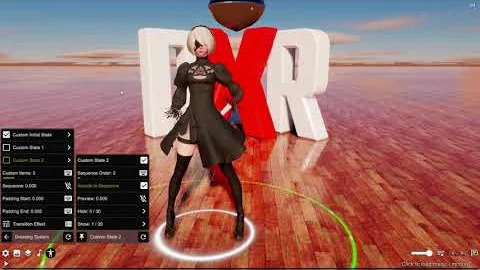
Converting an FBX model into XPS format and using the bone mapper to make it work in DanceXR (older workflow — modern FBX support no longer requires conversion):
Related pages
- Working with actors — actor lifecycle and PMX vs XPS vs FBX paths
- Example bone structure — reference skeletons for what bones to look for
- Actor troubleshooting — when things still look wrong after mapping