Skin Materials
Controls properties of the materials that are categorized as skin materials.
Skin materials uses a special skin shader that enables subsurface scattering and has a procedural detail map that simulates detail textures of human skin.
Subsurface scaterring conflicts with metallic effect so if you use metallic effect on top of skin materials, the subsurface scattering effect will be disabled.
Categorization
The system automatically puts materials that are named with certain keywords into the skin category. However this can sometimes be wrong, so you can manually assign materials to this category.
Settings
- Thickness: Thickness of the skin. This controls how much light is scattered inside the skin.
- Subsurface Intensity: Intensity of the subsurface scattering effect.
- Gloss: Glossiness of the skin.
- Detail Size: Size of the detail texture.
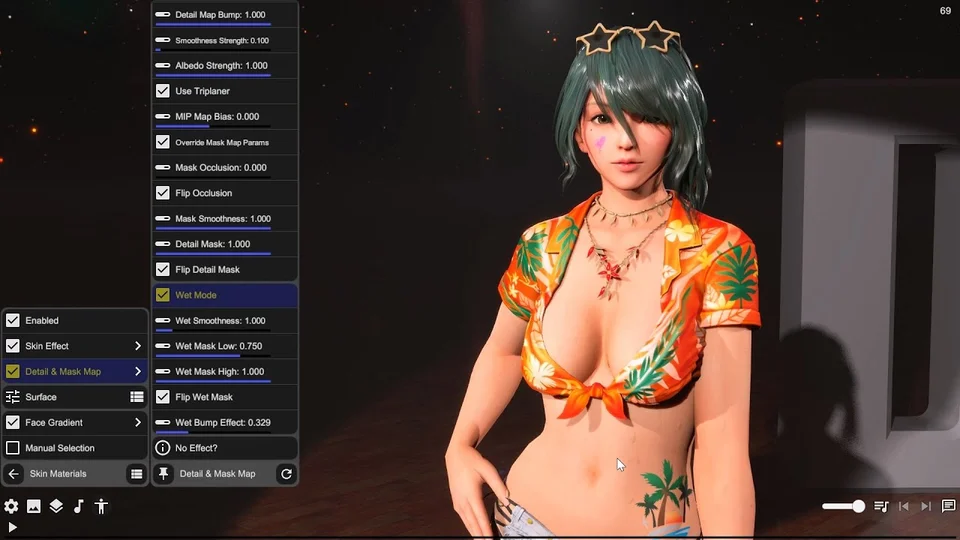
- Detail Map Bump: Intensity of the normal map of the detail texture.
- Detail Map Smooth: Smoothness of the detail texture.
- Detail Map AO: Ambient occlusion of the detail texture.
- Detail Mask: Controls for detail masks, including flip options and gloss property adjustments.
- Override Mask: Override mask settings in the Skin Shader.
- Occlusion: Default occlusion effect is set to 0 for skin materials to prevent darkening issues.
- Wetness Effect: Turn on wet mode when a wet texture is available for an enhanced wet appearance.
- Bump Effects: Adjust the bump effect of the wetness texture for more realism.
Shader improvements (v2026.2)
DanceXR 2026.2 updates the skin shader to provide a more realistic skin texture appearance, improving how lighting and detail interact with skin materials across all supported platforms.
Sweat effect
Sweat is an actor-level effect that can apply to skin, hair and other materials. Open the actor’s Sweat settings rather than treating it as part of the skin category override.
- Start with the Sweaty preset or raise Sweat from zero.
- Leave Apply to Skin enabled and initially disable Apply to Hair and Apply to Others so you can judge the skin alone.
- Adjust Sweat Scale, Sweat Map Offset and Sweat Map Angle to align the pattern. Sweat Bump changes droplet relief and Sweat Flow animates the pattern.
- Use Wet Darken for darkened wet areas; Sweat Color and Sweat Blend tint the effect.
- Enable Water Drop only if you also want falling droplets. Sweat Drops controls their rate; gravity, drag, duration, size and alpha control motion and appearance. Sweat Collision adds interaction with body colliders.
For a subtle skin sheen, keep flowing texture and droplet spawning modest. If nothing changes, check the material’s category and the effect’s Apply toggles. To return to a dry appearance, use Off.
The 2026.2 shader update improved the effect’s appearance; 2026.3 added a dedicated shader variant for the disabled effect.