Screen
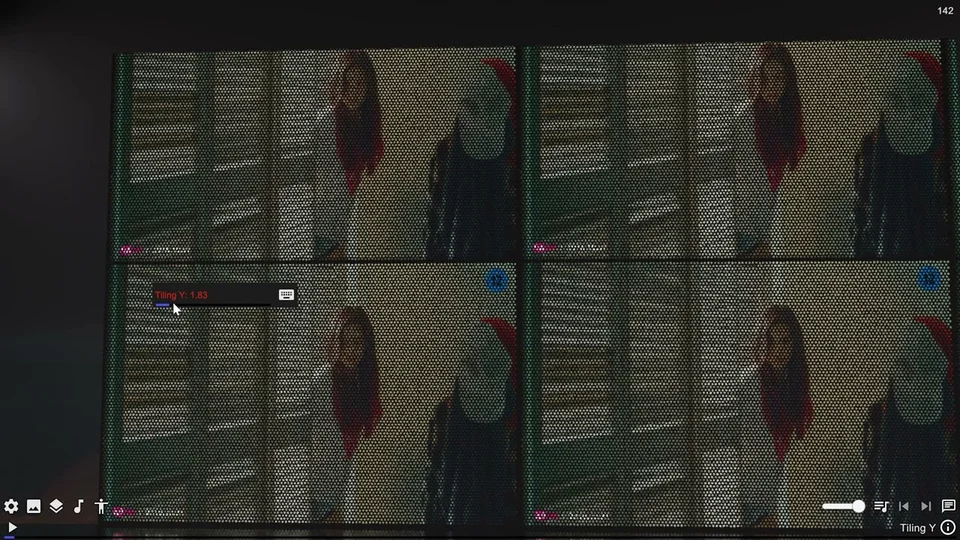
The built-in Screen prop displays a camera feed or playback video. Use it as a stage monitor or background display. Mirror reflects the viewer instead and has different source controls.
Configure a camera screen
- Add Screen from the props browser and place it in the scene.
- Adjust Size, Elevation, Tilt and Frame. Curve bends the display surface when a curved stage screen suits the scene.
- Leave Video disabled to use the camera view. Choose the camera tracking target, then tune FOV Scale and Height Offset to frame it.
- Enable Visible from Camera if the screen should appear in camera renders. Camera Model controls the visibility of the physical camera prop.
- Choose Resolution, then compare the result from the intended viewing distance.
Display a video
Load playback content through Video Player, then enable Video in the screen settings. The screen chooses the display source; the Video Player controls playback. Put video files in the videos folder of the content library.
Surface and troubleshooting
Gloss Coat and Smoothness change the surface response. Shadow toggles shadow casting, and HDRP exposes Brightness for glow intensity.
If the feed is blank, check the Video toggle and whether playback is prepared, or review the camera target when Video is disabled. If the screen is visible in the scene but missing from a rendered shot, check Visible from Camera. For a blurry feed, compare a higher Resolution only after framing and screen size are correct; larger captures cost more rendering work.