How Materials Are Organized
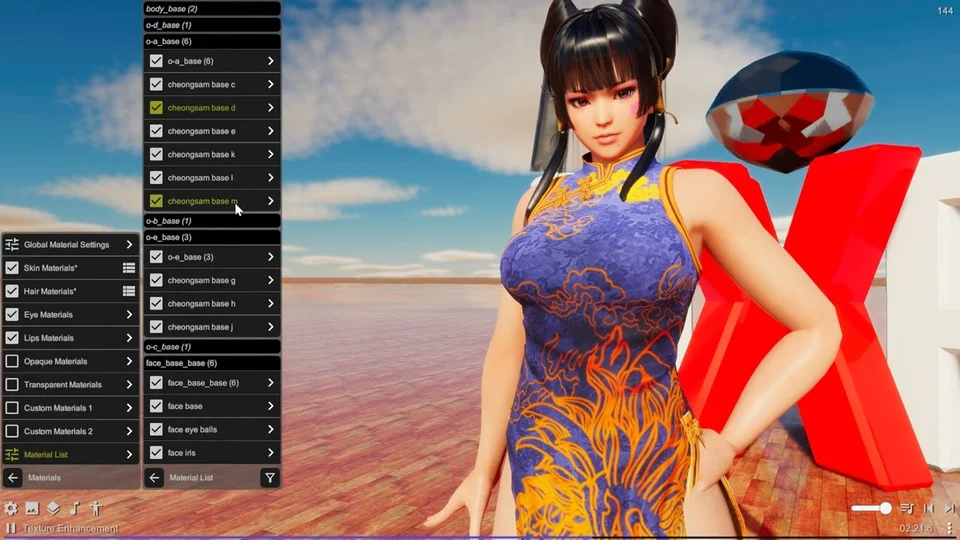
A model can have hundreds of different materials. To manage them more efficiently, we are organizing the materials in the following way:
-
Texture Groups To make the material list more manageable, we are grouping them by the texture file they use. Most of the time, skin, outfit, accessory, and hair all use different texture maps. So grouping by texture provides a nice separation for different purposes.
-
Material Categories In addition to the texture grouping, we also attempt to determine the purpose of each material by checking the material and texture names. Based on those purposes, we create categories for easier management of the materials. The categories are:
- Skin: Body, face, arms, and legs fall into this category and they are automatically assigned the skin shader for the best appearance.
- Hair: Hair materials also have their own shader for the best appearances.
- Eyes: Eyes have a different set of default values, like higher gloss.
- Lips: Lips are also assigned with values that are different from standard materials.
- Opaque: Opaque materials that are not in previous categories go here.
- Transparent: Transparent materials that are not in other categories.
- Custom: By default empty but you can assign material to this category and make your custom adjustments to them.
Making adjustments
Material list
You can find the material list from the actor menu. Just go to “Materials” / “Material List” and you’ll see all the materials listed under their texture groups.
Adjustments you can do in the material list:
- Group Specific Controls:
- Toggle: Control visibility of the entire group
- Override: If you want the same change to apply to all materials in the group, turn on “Override” and make adjustments in there.
- Share Material: Turn this on to force the entire group to use the same material from the first item. This might improve performance by reducing the overhead of multiple materials. Note that sometimes the individual materials have different settings and using share material in that case may have unexpected results.
- Individual Material Control:
- Change category: Change the default category
- Transparency: Change between auto, opaque, and transparent
- Transparent Prepass: This is a technique to address alpha sorting issue. But it has the downside of only allowing the first layer to show. You can turn it off if that’s not desired.
- Transparent Prepass Threshold: Alpha value higher than the threshold will not use the prepass.
- Surface: Adjust color, smoothness, metallic, and glow
- Shadow: Choose whether to drop shadow
- Shadow Threshold: It will only drop shadow if the alpha value is higher than the threshold.
Material Category Controls
- Skin With skin materials, you can control the detail map scale, thickness, and sweat effect.
- Hair Hair shader has detail map scale and anisotropy (The highlight becomes directional) control
New Gradient Control
Allow changing material properties along a gradient path.
Textures
A material can carry an unlimited number of textures (since 2025.9), each playing a different role in how the surface looks. The texture section in the material settings lists every texture on the selected material; click into a texture to inspect it and reassign its purpose if DanceXR’s auto-detection got it wrong.
DanceXR assigns the texture type and channel mappings automatically based on the texture file name. Most of the time you do not need to change anything — the rest of this section is for the cases where you do.
Basic texture types
Textures that map to a single role on the material:
| Type | What it does |
|---|---|
| Color | Main color of the surface (also called diffuse / albedo / base color). |
| Bump | Adds surface relief by altering the surface normals — wrinkles, seams, fabric weave. |
| Specular | Defines highlight color and sharpness on legacy specular workflows. DanceXR uses a PBR workflow, so specular data is redirected into metallic and roughness maps. |
| Emissive | Makes the surface appear to emit light. Used for glow effects, screens, eyes. |
| Alpha (Opacity) | Controls how transparent the material is. |
Advanced texture types
Some textures pack multiple roles into the channels (R, G, B, A) of a single image. DanceXR supports two:
- Detail — a tiling texture that adds fine detail on top of the base color (skin pores, fabric grain).
- Mask — defines which areas of the surface are affected by which properties (metallic, roughness, occlusion, detail).
For these, you assign each channel of the texture to a specific purpose. The available channel purposes are:
| Purpose | Used in | What it controls |
|---|---|---|
| Metallic | Mask map | How metallic the surface is, per pixel. |
| Occlusion | Mask map | Ambient occlusion — soft shadows in crevices. |
| Smoothness | Mask map | How smooth (mirror-like) the surface is. |
| Roughness | Mask map | Inverse of smoothness — provided for textures authored in roughness instead of smoothness workflows. |
| Bump X | Detail map | The X axis of a detail normal map. |
| Bump Y | Detail map | The Y axis of a detail normal map. |
| Detail Mask | Mask map | Limits where the detail texture is applied. |
So a single mask texture’s red channel might drive metallic, the green channel occlusion, the blue smoothness — DanceXR exposes each channel separately and you can repoint them individually.
Inspecting a texture
Inside the texture submenu:
- The texture itself displays at the top of the panel.
- Click the texture to break it into individual channels (R, G, B, A) so you can see what each one carries — useful when figuring out how a packed mask texture was authored.
- Below the preview, options let you change the texture’s type assignment and channel purposes.
This is the fastest way to figure out what an unfamiliar texture is for: open it, view the channels, and reassign if needed.
Opaque materials
The Opaque category covers solid materials outside the specialized skin, hair, eye and mouth categories. Category adjustments let you give several surfaces a consistent appearance; individual changes belong in the material list. The category override is disabled by default so imported materials can retain their own settings.
If automatic classification is wrong, open the material list, select the material and change its category. Change its transparency mode separately when you need to force it to render as solid. See Transparency for alpha and sorting problems, and Texture Enhancement for shared map controls.
Custom categories
Custom A and Custom B start without assigned materials. Use them when a group of surfaces needs the same appearance but should not inherit the skin or hair shader settings.
- Select a material in the material list and assign it to a custom category.
- Repeat for the other materials that should share those adjustments.
- Enable that category and tune its surface and texture enhancement settings.
- Check all assigned materials before saving: an override can improve one surface while making another too shiny or too dark.
For a one-off adjustment, leave the category override disabled and edit the individual material. Share Material is a separate texture-group option; use it only when the group should share the first item’s material, including its appearance.