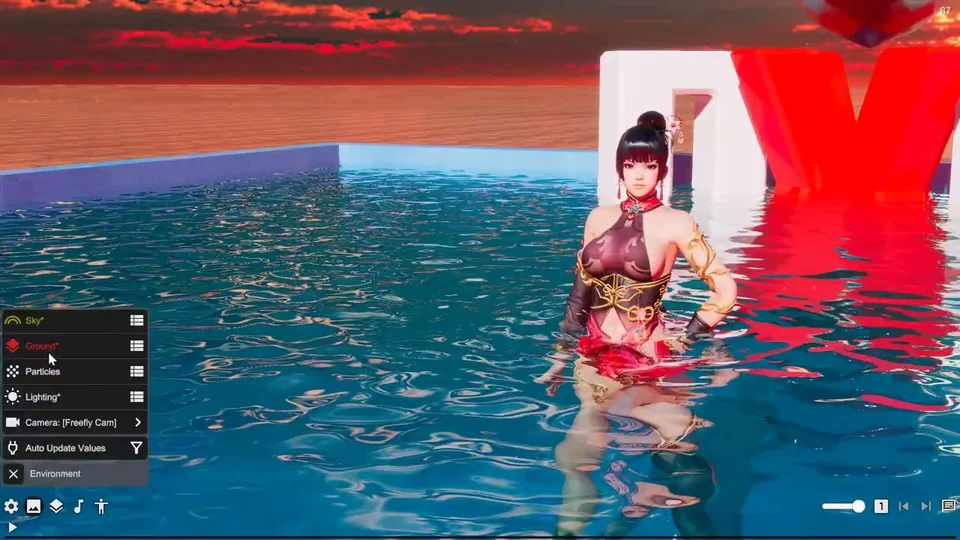
Water System
Water appearance is configured in Ground, while an actor’s Water Interaction settings control its contact ripples. Keep these two scopes separate when tuning a scene.
Set up a pool
- Open Ground’s Stage / Pool controls and set the stage geometry and height for the performance area.
- Open its Water System and enable water. Choose Pool for water confined to the stage area, or River/Ocean for the other surface modes.
- Adjust water height relative to the platform and actors. Check the view from above and below the surface.
- Tune waves, ripples and visible distances in Ground’s water controls.
- Open each actor’s Water Interaction settings and adjust its contact ripple intensity.
The procedural stage height also affects the floor used by actors and props. If an imported stage is present, inspect the interaction between that stage and the procedural platform before changing the water level. See Ground for stage shape and height controls and Stages for imported environments.
Actor contact ripples
On HDRP, Intensity scales contact ripple amplitudes. Body, Hands and Feet multiply the contribution of those body regions. Start with modest intensity and emphasize Feet for steps or Hands for trails. Water Interaction does not create the water surface; the scene water must already be configured.
The actor-specific Config Reference remains on Water Interaction. The feature has no effect in other render pipelines.
Check the result
If water is absent, check Ground’s water enable state and surface height. If the surface is visible but the actor creates no ripple, check the actor’s interaction intensity and rendering pipeline. If the scene is visually noisy, reduce wave motion and contact ripples separately to find the source.