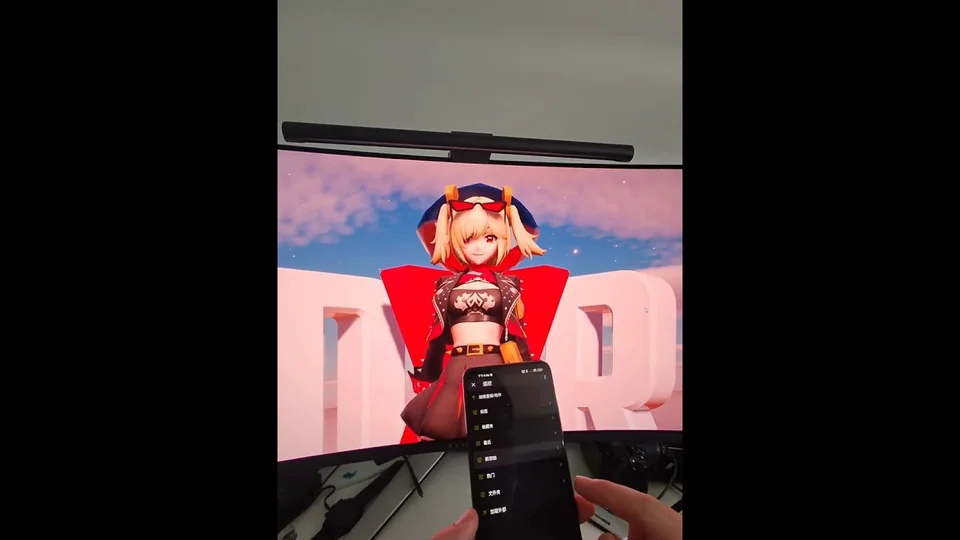
Remote Control
Remote Control lets the Android app act as a wireless controller for DanceXR running on another device on the same local network. You can change scenes, motions, and settings from your phone or tablet while the main DanceXR session runs on a PC, headset, or living-room screen.
Released as a public beta in 2024.12.
When to use it
- Adjusting settings during recording without walking to the keyboard.
- Driving a couch / big-screen DanceXR session from a phone.
- Operating a Quest standalone session from an Android phone instead of fumbling with the in-VR menu.
Requirements
- An Android device with the DanceXR Android app installed.
- A PC, Quest, or other DanceXR instance reachable on the same LAN.
- Both devices must be on the same network segment (no client isolation).
How to connect
- Launch DanceXR on the host device (PC, Quest, etc.).
- Open the Android app and choose Remote Control from the main menu.
- The app discovers DanceXR instances on the local network. Select the host.
- The Android UI replaces its own scene view with a touchpad + menu surface that mirrors the host’s UI.
What you can do remotely
- Access (almost) all menus and options.
- Use the touchpad to rotate the camera and move actors.
- Switch motions, scenes, and stages.
Network protocol
Remote Control uses a custom DanceXR protocol over the local network rather than HTTP. This is tuned for low latency over LAN; it is not designed for routing across the internet.
Troubleshooting
- Host not appearing in the list: confirm both devices are on the same network and that no firewall blocks DanceXR’s discovery port.
- Laggy or stuttering input: prefer 5 GHz Wi-Fi or wired host; avoid guest networks with client isolation.
- Version mismatch: the host and Android controller should run the same DanceXR version.
Related pages
- Application Settings
- Controls & UI
- VR Operations — for sessions running in VR on the host