Outfit & Bodypaint
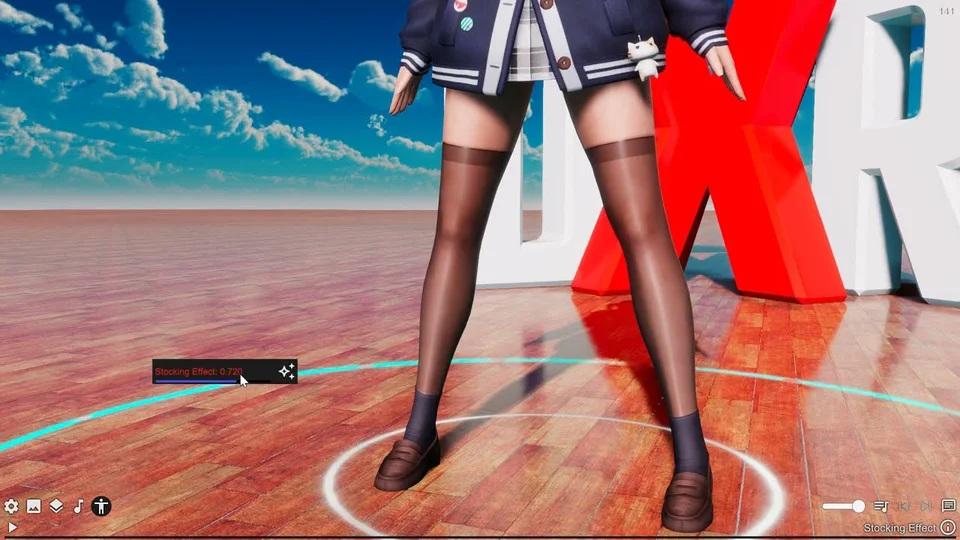
Outfit applies a procedural fabric/paint layer over the character’s skin material — used to add stockings, bodysuits, latex, hexagon detail, freehand body paint, and dissolve transitions without touching the underlying mesh or textures.
Mode
Mode picks how the layer behaves. Color Paint turns the character into a canvas you draw on directly with the cursor — pick a brush color and paint freely. Outfit hides the painting tools and instead drives the layer from the procedural shape/pattern settings, so you get clean stockings or bodysuits generated from parameters. Outfit Paint combines both: the procedural shape defines the outfit area, and you paint on top of it. The visibility rules in the panel collapse the unrelated sub-sections automatically once the mode is set.
Presets
Seven built-in presets cover the common cases — Body Paint, Fullbody Latex, V-Shape Fishnet, two stocking variants, and two bodysuits. They seed the mode, shape, and the three surface presets in one click; treat them as starting points to tweak rather than final looks.
Body Paint
See the Body Paint sub-section. Brush size, rotation, color, stamp texture, and save/load drawing live there. Visible only in Color Paint and Outfit Paint modes.
Shape & Pattern
See the Shape sub-section. Controls the procedural geometry of the outfit — stocking heights, top lines, fishnet/maze/curve line patterns, and bump effects along borders. Hidden in pure Color Paint mode since there is no procedural outfit to shape.
Surfaces
Three surface layers stack on the outfit: Surface Base is the main fabric (latex, stocking, gold, etc.), Surface Pattern drives the line/maze pattern fill, and Surface Border controls the trim around shape edges. Each is a full surface block (metallic, gloss, color, anisotropy, dissolve, special shaders) so you can mix e.g. matte stockings with a glowing border. Hidden in Color Paint mode.
Hexagon Detail
See the Hexagon Map sub-section. Adds a procedural hex / circle micro-pattern on top of the surface for fishnet-style detail or sci-fi panels. Toggle off when you want a smooth fabric.
Dissolve
Dissolve is the master amount (0 – 1) that fades the outfit away along the dissolve map — drive it with auto-update for tearing/melting transitions synced to music or other data. The Dissolve Map sub-section configures the map itself: pattern frequency, edge width and bump on both sides of the cutoff, X/Y offsets, and a hard cutout toggle. Hidden in pure Color Paint mode.
Settings reference
Body Paint
Freehand painting on the character’s body. Drag the cursor (or VR pointer) across the model to apply color or pattern strokes directly onto the outfit canvas. The canvas persists across frames so you can build up a drawing over time, save it as a texture, and reload it later.
Brush
Brush Size and Brush Rotation set the stroke shape; rotation only matters when a stamp texture is selected. Texture picks an optional stamp — when set, each click stamps a single decal instead of drawing a continuous stroke, which is the right choice for tattoos or logos. Brush Type selects which channel you’re painting (Base / Pattern / Edge / Erase) when in Outfit Paint mode; in Color Paint mode the channel is implicit and this is hidden.
Color, Glow & Preserve
Color is the brush color in Color Paint mode. Glow multiplies the painted color’s intensity (above 1 it becomes emissive). Preserve Color biases the glow boost so it amplifies brightness without washing out the color’s hue — useful when you want a saturated neon look rather than a bleached bright one. Erase flips the brush to clear instead of paint.
Paint Side
Restricts strokes to Front, Back, or Both sides of the body. Pick a side when you want a design only on the chest or only on the back without having to carefully avoid the other.
Canvas Actions
Clear Canvas wipes the drawing. Save Drawing writes the current canvas to disk as both an HDR and PNG so the full colour/glow range survives a round-trip. Load Drawing picks a previously saved drawing (or any drawing texture in the library) as the canvas contents.
Shape & Pattern
Procedural geometry for the outfit layer — defines where the outfit covers the body and what pattern fills it. Everything is computed in shader, so changes are live and free of texture authoring.
Stocking & Top Lines
Outfits are bounded by up to three diagonal cuts: one stocking line (the bottom of the leg cover) and two top lines (V-neck style cuts on the torso). Each line has a Height (where it crosses the centre) and an Angle (tilt away from horizontal). Combine the three to draw stockings, V-shape bodysuits, fishnet halters, etc. Stocking Edge and Top Edge soften the cut into a gradient — small values give a hard hem, larger values fade the outfit into skin.
Line Pattern
Line Pattern Type picks the fill: None leaves the area solid, Grid tiles a fishnet, Maze and Maze Curve generate non-repeating maze lines, Parallel draws stripes. Line Pattern Density sets the line spacing, Line Pattern Rotation rotates the whole pattern, Line Pattern Symmetric mirrors it across the body’s centre so left and right match. Line Pattern Seed reshuffles the random maze without changing density. Border Size In/Out control how thick the line is on each side of its centre — use the asymmetry to suggest stitching or piping.
Bump
Inside / Outside Bump raises or lowers the surface near the line edges, with Inside / Outside Distance controlling how far the bump bleeds. Subtle positive bump reads as raised stitching; negative bump reads as a pressed seam.
Hexagon Map
A procedural hexagonal (or circular) micro-pattern overlaid on the surface for fishnet, sci-fi panel, or studded looks. Toggle it off whenever you want a smooth fabric.
Density & Shape
Density sets how many hexagons fit across the surface (snapped to powers of two for clean tiling). Size scales each hex within its cell — smaller values leave gaps between hexes, larger values pack them tight. Use Circle swaps the hex shape for circles, useful for polka-dot or rivet looks. Soft Edge controls the falloff at each cell’s border; values near zero give a crisp boundary, larger values blur the pattern into the surrounding surface.
Bump & Noise
Bump raises or lowers each cell relative to the surface (negative values stamp inwards). Noise randomises per-cell height so the pattern doesn’t read as a perfect grid.
UV Projection
For outfits the cells can either follow the model’s UV layout or be projected from a virtual cylinder around the body. UV Projection enables the cylindrical mode — turn it on when stretched or distorted UVs ruin the pattern. Projection Radius scales the cylinder, and Rotation tilts it so the hex grid runs diagonally instead of straight.
Dissolve Map
Generates the noise map that drives the parent’s Dissolve slider. The map is built from two layered patterns and an edge profile, so the same dissolve amount can read as cracking, burning, melting, or a clean cut depending on these settings.
Layer 1 & Layer 2
Two independent noise layers combine to break up the dissolve front. Pattern L1 / L2 pick a noise variant (different values produce visibly different shapes). Density L1 / L2 control how fine each layer is — L1 is typically the broad shape, L2 the small-scale detail. Magnify Scale zooms both layers, Curve sharpens or softens the dissolve gradient.
Edges
Where the outfit dissolves it leaves a transition band on each side of the cutoff. Edge Size and Edge Bump shape the band on the still-visible side; Inverse Edge Size / Bump shape the band on the dissolved side. Negative bump indents the surface (good for char/burn looks); positive bump raises it. Cutout discards dissolved pixels entirely instead of fading their alpha — pick this when you want the outfit to vanish hole-by-hole rather than fade out.
Offset
Offset X / Y slide the dissolve map across the body. Animate them (via auto-update) to make the dissolve front sweep in a direction rather than appear uniformly.