Video Player
Controls video playback, audio sync, and aspect ratio for the loaded video file.
Playback
Loop restarts the video automatically when it ends. Mute silences the video’s audio track — useful when playing video as a background layer and relying on the main audio mix instead.
Time Offset shifts the playback timeline relative to the audio; use this to correct sync drift between video and music.
Display
Aspect Ratio lets you match the video to the screen shape — choose from common cinema and broadcast ratios. Fit Frame scales the video to fit the screen while preserving aspect ratio, which may introduce letterboxing or pillarboxing depending on the mismatch.
Timing
Inherits timing configuration from Base Timing — sets BPM, beat offset, and phrase structure used to sync video-reactive effects.
Presets
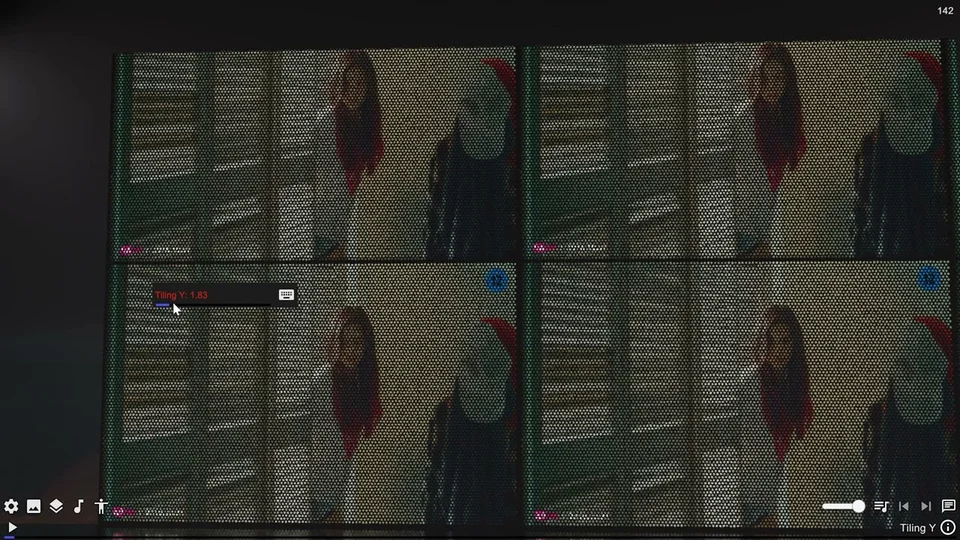
Projector Scene Example and LED Screen Example apply preconfigured ground and lighting settings optimized for a projector screen look and an LED wall look respectively.